
Clever: Login, Portal, Badges and Student Access Guide
Learn what Clever is, how the Clever Portal works, how students and teachers sign in, and how to solve common access problems.
What Is Clever?
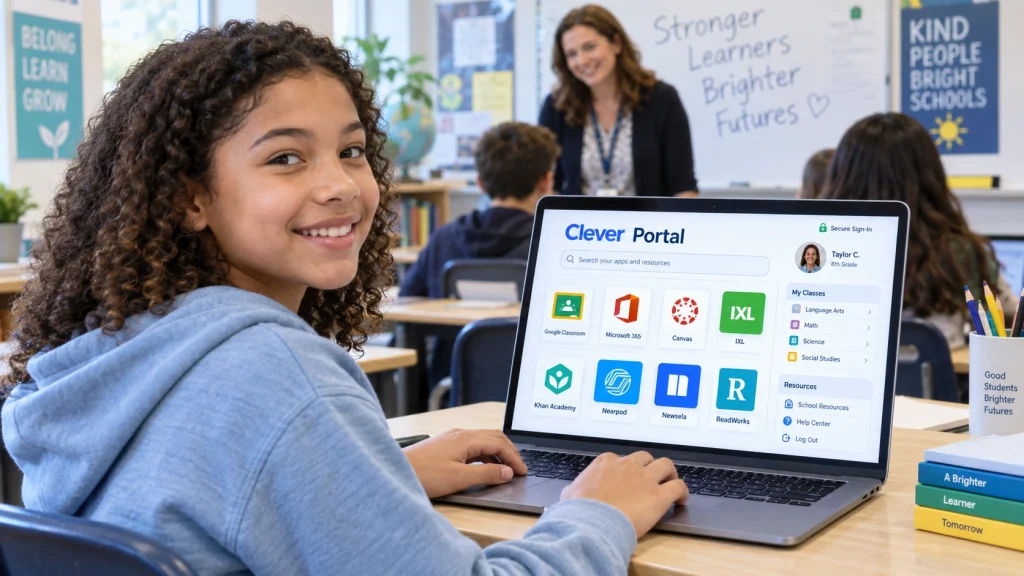
Clever is an identity and digital-learning platform developed for education. It gives students, teachers and school staff one organized place to access applications, digital textbooks, lessons and resources approved by their school.
Instead of remembering separate credentials for every educational service, users can sign in through the Clever Portal. After authentication, the dashboard displays resources based on the user’s school, role, grade, classes and permissions.
Clever is not an online school and does not replace teachers or a school district. It connects school identities with compatible learning services.
| Information | Details |
|---|---|
| Founded | 2012 |
| Main purpose | Identity, access and digital-learning management |
| Users | Students, teachers, staff and administrators |
| Login options | School credentials, Google, Microsoft, district SSO and Clever Badge |
| Official site | Clever.com |
Figures are based on the official Clever website and may change.
Why Was Clever Started?
Clever was founded to make educational technology easier to access and manage. As schools adopted more apps, students and teachers faced many usernames, passwords and web addresses. Administrators also had to create accounts and update rosters across multiple services.
Clever addresses this complexity through single sign-on, automated rostering, identity management and centralized application access. The aim is to reduce login time and help educators focus on teaching.
How Does Clever Work?
Clever can connect with a district’s student information system, identity provider and approved educational applications. The district controls its setup.
How to Log In to Clever
Each district can configure Clever differently. Use the address and instructions supplied by your school.
How Are Clever Accounts Created?
Student accounts are normally created or provisioned through participating schools. A typical process includes connecting authorized school information, matching identities, synchronizing courses and rosters, assigning applications and distributing login instructions or Badges.
If you have not received access, contact your teacher or school technology team. Teachers interested in Clever should contact their district administrator.
Clever Login Methods
| Method | How it works | Important detail |
|---|---|---|
| Username and password | Uses school-issued credentials. | Do not substitute a personal account. |
| Uses an approved school Google account. | The district must enable it. | |
| Microsoft | Uses an authorized school Microsoft account. | Often used with Microsoft 365. |
| Clever Badge | Scans a school-issued QR-style Badge. | Commonly helps younger learners. |
| District SSO | Redirects to the district identity system. | Steps vary by district. |
| Mobile access | Uses a supported phone or tablet. | Individual apps may have separate requirements. |
Benefits for Students, Teachers and Schools
One personalized place for assigned apps, textbooks and class links, with fewer separate passwords for connected resources.
Organize resources, use Teacher Pages, review available engagement information and handle certain access problems.
Manage identities, rosters, permissions and approved application access from a centralized system.
Where enabled, guardians can reach approved family resources and school communications.
Main Clever Features
| Feature | Purpose |
|---|---|
| Clever Portal | Personalized dashboard for approved resources. |
| Single Sign-On | Access to connected apps through one identity. |
| Clever Badges | Camera-based login without manually typing credentials. |
| Secure Sync | Connects authorized roster data with applications. |
| Teacher Pages | Organizes apps, links and PDFs for classes. |
| Clever Analytics | Shows authorized educational-technology usage information. |
| Identity Management | Supports provisioning, authentication and access control. |
Identity and Account Management
School identities change throughout the year as students join, transfer, change classes or graduate and staff roles change. Depending on district products and configuration, identity tools can help create, update, group and deactivate accounts based on authorized school information.
This can reduce abandoned accounts, incorrect permissions and continued access to resources a user no longer needs. Final policies and controls remain with the district.
Secure Rostering and SIS Data
Learning applications require accurate rosters showing teachers, students, classes and courses. Clever Secure Sync can connect authorized student information system data with participating applications.
If a student sees the wrong class or loses access after transferring, school personnel should review enrollment, roster synchronization and app assignment.
Teacher Pages and Digital Classrooms
Teacher Pages help educators organize learning applications, links, documents and class resources. Materials can be arranged by subject, lesson, week or activity, helping students reach the correct resource without searching multiple websites.
Available tools depend on district permissions and the Clever services enabled by the school.
Clever Analytics and Usage Insights
Clever Analytics gives authorized schools information about educational-technology usage. Dashboards may show login activity, application engagement and participation patterns.
Teachers may use class-level information to identify students who have not opened a resource, while leaders may examine broader technology trends. Login activity alone does not measure understanding or academic achievement.
Learning Applications Through Clever
Every school has a different app selection. Students see only services assigned according to district licenses, class rosters and permissions.
Math instruction, practice, visual problem-solving and personalized activities.
Vocabulary, fluency, comprehension, writing and language development.
Digital lessons, instructional videos, simulations and activities.
Lessons, assignments, discussions and course resources.
Services such as i-Ready, IXL, Lexia, ST Math, Zearn, Canvas or Schoology may appear where a district has an appropriate integration and license. Their availability is not guaranteed.
Subject-Wise Learning
Mathematics
Assigned applications may support arithmetic, algebra, geometry and visual problem-solving. Some adapt activities according to performance.
English Language Arts
Resources may cover phonics, reading, vocabulary, grammar, writing and comprehension.
Science
Connected tools can include digital lessons, simulations, videos and assessment materials.
Social Studies and History
Students may access maps, timelines, primary sources, historical videos and digital textbooks.
Formative Assessment
Assessment platforms may be opened through Clever, but scores and recommendations are generally produced by the connected application rather than Clever itself.
District-Specific Clever Portals
People often search for Clever Broward, Clever CCSD, Clever DPSCD, Clever LAUSD, Clever PGCPS, Clever HCPS and Clever SCPS. These usually refer to district-specific uses of the platform.
| Search | District guidance |
|---|---|
| Clever Broward | Use the official Broward district portal. |
| Clever CCSD | Confirm the state because CCSD can represent multiple districts. |
| Clever DPSCD | Follow Detroit Public Schools Community District instructions. |
| Clever LAUSD | Use the official LAUSD access information. |
| Clever PGCPS | Use the district-published Prince George’s County portal. |
| Clever HCPS | Verify the full district name and location before signing in. |
Devices and Browser Compatibility
Clever can be accessed through supported browsers on many Chromebooks, Windows computers, Macs, tablets and phones. The experience depends on browser permissions, district restrictions and each connected application.
- Keep the browser and operating system updated.
- Allow the camera when using a Clever Badge.
- Use a school-managed browser profile when required.
- Check whether an individual service requires its own mobile app.
Accessibility and Inclusive Access
Students may use screen readers, keyboard navigation, magnification or other assistive technologies. Clever and every connected app have their own accessibility features and limitations.
If a resource is inaccessible, contact the teacher, special-education team, accessibility coordinator or district technology department to request appropriate support.
Clever Login Problems and Solutions
| Problem | What to try |
|---|---|
| School not found | Check spelling or use the district link provided by your teacher. |
| Password rejected | Check Caps Lock and confirm you are using school credentials. |
| Wrong Google account | Sign out of personal accounts and choose the school account. |
| Badge does not scan | Allow camera access, improve lighting and hold the Badge flat. |
| App is missing | Ask a teacher to verify the roster and app assignment. |
| Wrong class appears | Ask the district to review enrollment and roster synchronization. |
| Platform unavailable | Check Clever Status and school announcements. |
Privacy and Security
Clever provides education-focused identity, authentication and access tools. Schools remain responsible for configuring access, and users must protect their credentials.
- Use official Clever or district pages.
- Never share a password or Clever Badge publicly.
- Sign out on shared computers.
- Report unfamiliar apps or suspicious requests.
- Follow the district’s acceptable-use and privacy policies.
Pros and Cons of Clever
| Potential benefits | Possible limitations |
|---|---|
| One portal for approved resources | App selection depends on the district |
| Fewer separate passwords | Some apps may require extra authentication |
| Badge login helps younger students | Requires a valid Badge and camera |
| Automated roster management | Incorrect school data can affect access |
| Organized Teacher Pages | Tools differ between districts |
| Useful engagement insights | Usage does not equal learning outcomes |
Frequently Asked Questions
Is Clever free for students?
Students do not normally purchase personal access. Participating schools manage accounts and assigned resources.
Can a student create a Clever account?
Student accounts are generally provided through participating schools. Ask a teacher or administrator for access.
What is a Clever Badge?
It is a school-issued QR-style login method scanned with a compatible camera.
Can I use Google to log in?
Yes, when the district enables Google authentication. Use the specified school Google account.
Why is an app missing?
Access depends on licensing, enrollment, role and assignment. Contact your teacher or technology team.
Who resets a Clever password?
Password management depends on the district login method. Contact school support.
Does Clever work on mobile devices?
It can work on supported phones and tablets, but individual apps may have separate requirements.
Can parents log in?
Family access depends on the district. Follow instructions supplied by the child’s school.
Is CleverApp.us official?
No. It is an independent information site. The official platform is Clever.com.
Explore More Clever Guides
Final Thoughts
Clever gives participating schools a centralized way to manage identities, rosters and digital resources. Students can reach assigned apps through a personalized Clever Portal, while teachers and administrators receive organization, access and management tools.
Every district configures Clever differently. For password resets, missing apps, incorrect classes or account problems, contact your school or district technology department.
↗ Visit Official Clever Website